
A WordPress to HubSpot migration is usually a rebuild with an import step, not a one click move. Your blog posts and their metadata can come across with HubSpot's own import tools, but your theme, plugins, custom post types and most page layouts have to be recreated inside HubSpot. The work that decides whether search traffic survives is the planning: an inventory of what you have, a clear list of what gets rebuilt, and a 301 redirect map for every URL that changes.
This guide is for teams who are seriously weighing a move from WordPress to HubSpot Content Hub. It covers when the move makes sense, what moves and what gets rebuilt, how redirects work in HubSpot, the hybrid option of keeping WordPress and connecting HubSpot to it, and a planning checklist you can use before anyone touches a template.
The short answer
To plan a WordPress to HubSpot migration well:
- Decide why you are moving. Write down the problem HubSpot solves for you. If the main goal is CRM, email and lead tracking, the hybrid route may be enough.
- Inventory everything. Every URL, template, plugin, form, custom post type and integration on the WordPress site.
- Split it into two lists. What can be imported (mainly blog posts and page metadata) and what has to be rebuilt (theme, page layouts, plugin features, forms).
- Rebuild the theme in HubSpot. Recreate templates and modules before importing content into them.
- Map and test redirects. Every old URL that changes gets a 301 redirect to its closest new equivalent.
- Launch, then check. Crawl the old URL list, watch Search Console and fix gaps quickly.
When moving to HubSpot makes sense
HubSpot is a strong choice for some teams, and it is worth being fair about that. Moving the website onto HubSpot Content Hub tends to make sense when:
- Your marketing and sales already run on HubSpot. Pages, blog, forms, emails and the CRM live in one system, so reporting from first visit to closed deal is simpler.
- Marketers need to publish without a developer. Once a developer builds the theme and modules, editors can create pages from approved building blocks.
- You want fewer moving parts. HubSpot runs the platform itself, so there is no separate plugin stack to manage.
- Personalization and lead flows matter more than custom features. Smart content, CTAs and workflows connect directly to CRM data.
It tends to be a harder fit when the site depends on custom post types, complex plugins, membership or ecommerce features, or large amounts of structured content. Those can still be done in HubSpot, but usually through custom development rather than an import. If you are not sure which side you are on, the hybrid route later in this guide is worth reading first. If you are actually moving in the other direction, see our HubSpot to WordPress migration guide.
What moves and what gets rebuilt
This is the list most people want before they commit. It is based on HubSpot's own documentation for its import tools and theme development.
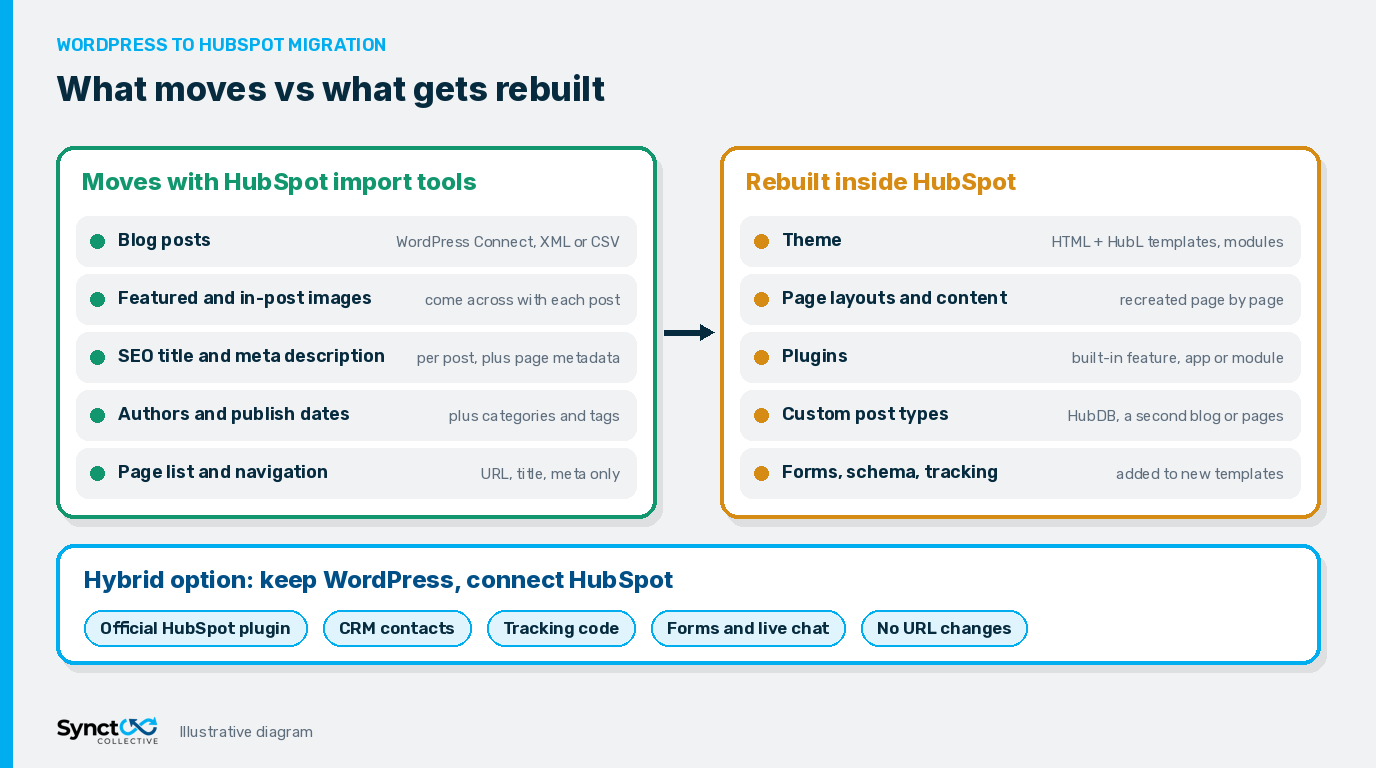
What moves with HubSpot's import tools
- Blog posts: HubSpot's WordPress Connect blog import reads your blog through the standard WordPress REST API and collects each post's title, SEO title, author, publish date, featured image, categories and tags, meta description and post body.
- Images in posts: featured images and images placed in the post body come across with the post. Author photos do not, unless they sit inside the post body.
- Page metadata and navigation: HubSpot's website page import can bring in each page's URL slug, title and meta description, plus your navigation menus. It does not import page content, so treat it as an inventory and a starting point.
- Fallback options: if WordPress Connect cannot reach your site's REST API, HubSpot also accepts a WordPress XML export or a CSV file for blog posts.
What gets rebuilt in HubSpot
- The theme: WordPress themes are PHP and cannot run in HubSpot. HubSpot's developer guide to converting a WordPress theme describes rebuilding it as a HubSpot theme with HTML and HubL templates, modules, CSS and JavaScript.
- Page layouts: landing pages and service pages are recreated with the new templates and modules, then content is added page by page.
- Plugins: each plugin is replaced by a built-in HubSpot feature, a marketplace app or a custom module. Some will not be needed at all.
- Custom post types: WordPress Connect does not support custom post types. Case studies, team members, locations or resources usually become HubDB tables (on plans that include HubDB), a second blog or standard pages.
- Forms: WordPress form plugins are replaced with HubSpot forms, including fields, follow up emails and notification rules.
- Schema and tracking: any custom structured data, scripts and analytics tags need to be added to the new templates.
How to plan the move, step by step
1. Inventory the WordPress site
Export every URL from your sitemap and a full crawl, then add analytics and Search Console data so you know which pages earn traffic and links. List every template, plugin, custom post type, form and third party integration. This becomes the master sheet for everything that follows.
2. Decide what to keep, merge or retire
A migration is a good moment to drop thin or outdated pages. Mark each URL as keep, merge or retire. Retired pages still need a redirect to the most relevant remaining page, not a blanket redirect to the home page.
3. Build the HubSpot theme first
Rebuild templates and modules before importing content, so imported posts and pages land in their final design. Keep heading structure, internal links and image alt text in mind while building, since templates control a lot of on page SEO.
4. Import the blog and page inventory
Run WordPress Connect for the blog and import as drafts so you can review each post. Check that internal links and image paths point where you expect, then use the page import to create the page list and rebuild the content inside it.
5. Recreate forms, CRM fields and workflows
Map every WordPress form to a HubSpot form, confirm which CRM properties each field writes to, and rebuild notifications and follow up emails. Test every form end to end before launch.
6. Build and test the redirect map
Covered in detail below. This is the step that protects the search visibility you already have.
7. Launch and check
Connect the domain, submit the new sitemap, recrawl your old URL list and watch Search Console for 404s and indexing changes over the following weeks.
Your 301 redirect map in HubSpot
Keep URLs the same wherever HubSpot allows it. That is the simplest way to avoid losing visibility. For URLs that must change, HubSpot's URL redirects tool handles the mapping on domains connected to HubSpot:
- Standard redirects send one old URL to one new URL.
- Flexible pattern redirects handle whole groups of URLs with one rule, for example moving every post from an old blog path to a new one.
- Bulk import lets you upload redirects from a CSV file, up to 500 at a time.
Two common changes to plan for: WordPress category and tag archives, which rarely map one to one in HubSpot, and date based post URLs, which a flexible pattern rule can usually handle. HubSpot notes that redirects can take up to 48 hours to propagate, so test early rather than on launch day. Our guide to building a CMS migration 301 redirect map walks through the spreadsheet, matching rules and post launch checks in detail.
The hybrid route: keep WordPress, connect HubSpot
Many teams that search for a WordPress to HubSpot migration really want HubSpot's CRM, email and reporting, not a new website platform. If that is you, there is a simpler option: keep the site on WordPress and connect it to HubSpot.
The official HubSpot WordPress plugin adds the HubSpot tracking code to your pages automatically and gives you access to HubSpot forms, live chat, contacts, email and reporting from the WordPress dashboard. HubSpot can also collect submissions from your existing WordPress forms through its non HubSpot forms tool once the tracking code is in place, so you do not always have to rebuild forms on day one.
The hybrid route suits teams that:
- Have custom WordPress features, structured content or integrations that would be costly to rebuild.
- Already have strong search visibility and do not want the risk of a full URL change.
- Want CRM and lead tracking working in days or weeks rather than after a full rebuild.
It is not a permanent compromise. Plenty of businesses run WordPress and HubSpot together for years, and some later move the site across once the CRM side is settled and the business case is clearer.
WordPress to HubSpot migration checklist
- Written reason for moving, agreed by marketing and sales.
- Full URL inventory with traffic, links and keep, merge or retire decisions.
- List of templates, plugins, custom post types, forms and integrations, each with a HubSpot replacement.
- HubSpot theme and modules built and reviewed before content import.
- Blog imported as drafts and spot checked for links, images, authors and dates.
- Titles, meta descriptions, headings and alt text carried over or improved.
- Forms mapped to CRM properties and tested end to end.
- 301 redirect map complete, uploaded and tested before launch.
- Structured data and tracking added to the new templates.
- New sitemap submitted and Search Console checked in the weeks after launch.
On timing: a small brochure site with a blog is often a few weeks of work, while a larger site with custom features and integrations is often a few months. Treat those as rough ranges, not promises. Your own inventory is the only reliable way to scope it.
Frequently Asked Questions (FAQs)
Q: Can I move a WordPress site to HubSpot automatically?
A: Partly. Blog posts can be imported with HubSpot's WordPress Connect tool, and HubSpot can import page titles, URLs, meta descriptions and navigation. Page content, the theme, plugins and custom post types still need to be rebuilt or moved by hand.
Q: Will HubSpot import my WordPress theme?
A: No. A WordPress theme is PHP code that HubSpot cannot run. It has to be rebuilt as a HubSpot theme using HTML and HubL templates, modules, CSS and JavaScript.
Q: What happens to my WordPress plugins?
A: Plugins do not move. For each one, decide whether HubSpot already covers the job, whether a marketplace app does, or whether it needs a custom module or integration. Some features may simply be dropped.
Q: How do I keep my SEO when moving to HubSpot?
A: Keep URLs the same where you can, map every old URL that changes to its closest new page with a 301 redirect, carry over titles and meta descriptions, and check redirects, sitemaps and Search Console after launch.
Q: How long does a WordPress to HubSpot migration take?
A: It depends on the number of templates, pages and integrations. A small brochure site with a blog may take a few weeks, while larger sites with custom features often take a few months. Scope it from your own inventory rather than a generic estimate.
Q: Can I use HubSpot without leaving WordPress?
A: Yes. The official HubSpot WordPress plugin connects a WordPress site to HubSpot's CRM, adds the tracking code and gives access to forms, live chat and reporting, so many teams keep WordPress as the website and use HubSpot for marketing and sales.
Need help planning the move?
Whether you move fully to HubSpot or keep WordPress and connect it, the search side needs the same care. Our WordPress SEO service covers URL inventories, redirect planning and post launch checks, and our AI search optimization work helps your content stay clear and quotable for Google and AI tools. If you are an Isle of Man business, see our WordPress SEO services in the Isle of Man. Or talk to our team about which route fits your site.


